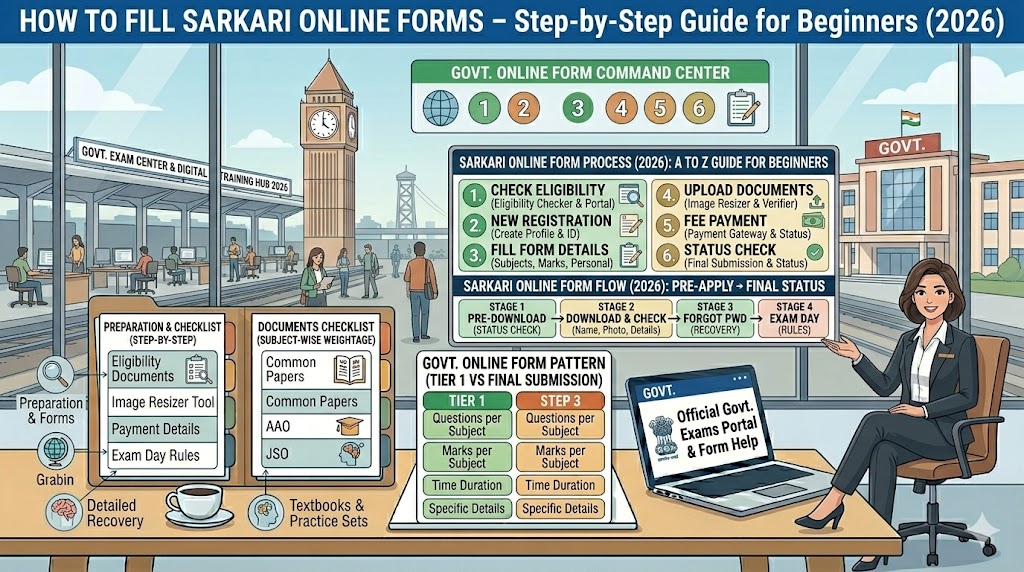
The rejection is never random. Every year, candidates who are fully eligible — right age, right qualification, right category — lose their application because of one wrong entry, one blurry photo, or one closed browser tab at the payment screen. These are not unlucky outcomes. They are predictable, repeatable mistakes that this guide will help you avoid completely.
Read this before you open the portal. It will save you the one mistake you cannot take back.
Before You Open the Portal — Gather Everything First
Opening the form without preparation is how avoidable errors happen. You will be asked for specific details mid-form, and if you work from memory instead of documents, you will get them wrong.
Have these ready before you begin:
-
Class 10 marksheet — your base document for name, father’s name, date of birth, board name, and school
-
Aadhaar Card — for address, Aadhaar number, and the mobile number linked to it
-
Educational certificates — degree, diploma, or relevant qualification for the post you are applying for
-
Category certificate — SC/ST/OBC/EWS if applicable; verify whether the central government format is specifically required (it usually is for central government recruitments)
-
Active mobile number — able to receive OTP; this becomes your login credential
-
Dedicated email address — not shared with family members; all official communication arrives here
-
Photograph and signature images — in correct format, size, and specifications (detailed in sections below)
-
Payment method — UPI, debit/credit card, or net banking, ready to use
One rule that overrides everything else: Every detail you enter must exactly match your Class 10 marksheet — not your Aadhaar, not what you think your name is. Your 10th certificate is the reference document for all government exams. Aadhaar is identity proof, not the authority for your official name or date of birth.
Official Portals — Go Direct, Not Through Search Results
Do not search for the application link on Google and click the first result. Fake portals mimic official sites and steal registration details. Type the official URL directly into your browser.
On the homepage, find the “Latest Notifications” or “Active Recruitments” section. Click the notification PDF first — read it before clicking Apply Online. The notification contains the exact photo dimensions, fee amount, eligibility conditions, and any exam-specific rules that override generic guidance.
Step 1 — Register and Save Your Login Credentials
Most portals separate registration from form-filling. Registration typically asks for your name, date of birth, mobile number, and email. After submission, a Registration ID and Password arrive by SMS and email.
Do three things immediately after registration:
-
Write the Registration ID and Password in a physical diary — not just on your phone
-
Take a screenshot of the confirmation screen
-
Do not share your password with anyone, including coaching centre staff
The registration confirmation page is often your only record if the portal loses your session. Save it.
Step 2 — Fill Personal Details Without Any Shortcuts
This section determines whether your application survives document verification. Every field here is cross-checked against your certificates.
Name: Enter exactly as printed on your Class 10 marksheet — including middle name or initials. Do not add Mr., Mrs., Shri, or Kumari. These are never part of an official name on educational certificates. If your marksheet reads “MANISH KUMAR SINGH,” enter all three words. One missing word can cause rejection at DV.
Date of birth: Always as per the 10th certificate. If there is a discrepancy between your Aadhaar and 10th marksheet, your 10th certificate is the valid document for government exams.
Father’s / Mother’s name: Same rule — enter exactly as in the 10th marksheet, including spelling and abbreviations.
Category: Select SC/ST/OBC/EWS/General accurately. For OBC candidates specifically — the creamy layer exclusion rule is more nuanced than a simple income cutoff. The ₹8 lakh per annum OBC creamy layer limit applies to income from “other sources” such as business, rent, and professional fees. Salary income and agricultural income are excluded from this calculation under the 1993 Office Memorandum that continues in force — confirmed as unchanged by the government as recently as October 2025. A government employee’s salary, for example, does not count toward the ₹8 lakh limit. If you are unsure, verify with the issuing authority before applying under OBC.
EWS candidates: Your EWS certificate must be issued for the current financial year (2025-26). A certificate from a previous year is not valid for 2026 applications.
Step 3 — Upload Your Photograph Correctly
A wrong photograph format is among the top three rejection reasons across all government exam portals. The problem is always preventable.
General photo requirements across most central government exams:
UPSC 2026 — additional mandatory step: UPSC now requires a live photograph captured in real-time via webcam or mobile camera during form submission, in addition to the uploaded passport photo. The live photo is automatically matched against the uploaded photo — any mismatch prevents the application from proceeding. Use Chrome or Firefox for best camera support; ensure your camera permission is enabled before opening the form.
If your photo file is too large: Use a free tool like imageresizer.com or iloveimg.com — upload the photo, set the required dimensions, compress to the required file size, then verify the exact size before uploading. If the photo looks blurry after compression, the original quality was insufficient — retake the photo in good natural light.
Step 4 — Upload Your Signature Correctly
How to prepare your signature image:
Take a plain white sheet of paper — no lines, no colour. Sign with a black ballpoint pen (blue ink is rejected on most central government portals). Keep the signature contained and legible. Photograph in good natural light or scan. Crop to include only the signature area — no excessive white space above or below.
Signature specifications by exam:
UPSC 2026 triple signature requirement — confirmed by UPSC official instructions: Sign exactly three times vertically (one below the other) on a single plain white sheet, with clear spacing between each signature. Scan all three together as one image file. UPSC will reject applications that have fewer or more than three signatures, signatures arranged horizontally, signatures in blue ink, or signatures on lined or coloured paper. Practice your signature and fix one consistent version — your signature at the exam hall and at DV must visually match what you uploaded.
Step 5 — Fill Educational Details Accurately
Enter your highest qualification relevant to the post — degree subject, university name, year of passing, and percentage or CGPA.
Final-year students applying provisionally: Select “Appearing” and mention the expected year of completion. You must submit proof of passing at DV.
Do not inflate your percentage — even 0.1% difference between the form and your marksheet can trigger rejection. Enter the exact figure from your marksheet.
For posts with physical standards (police, defence, forest services): verify the exact height, chest, and vision requirements in the notification before applying. If you are close to a borderline measurement, get yourself measured professionally before submitting the form.
Step 6 — Pay the Fee Without Closing the Browser
Do not close the browser, navigate away, or let the tab go idle during fee payment. A failed payment with a debited amount is one of the most stressful form-filling situations — and it is entirely preventable.
Typical fee amounts (check your specific notification):
Payment methods accepted on most portals: UPI (Google Pay, PhonePe, BHIM) is the fastest. Debit/credit card and net banking work on all major portals. SBI Challan payment takes 2–3 days to reflect — use it only if applying well before the deadline.
After payment completes:
-
Wait for the confirmation screen before doing anything else
-
Take a screenshot and note the Transaction ID / Reference Number
-
If the amount is debited but the portal shows payment failed — do not pay again immediately. Wait 30 minutes first. In most cases the amount reverses automatically and the application remains incomplete (correct status). If the amount is not reversed within 5–7 working days, contact your bank with the transaction reference number and inform the exam board’s helpline.
Step 7 — Review Everything Before Final Submit
This is the most skipped and most consequential step. Spend 5–10 minutes here.
Check every field in preview mode:
-
Name, father’s name, date of birth — match with 10th certificate exactly
-
Category — correct?
-
Mobile number and email — active and accurate?
-
Photo — right person, white background, not blurry?
-
Signature — clear, correct ink, correct format for your exam?
-
Educational details — correct percentage and year?
-
Exam centre choice — the one you actually want?
Most portals allow editing before final submission but not after. Make all corrections now. Once you click the final Submit button, only the correction window (if the board opens one, typically 3–7 days after the application period closes) can fix errors — and not all fields are editable even then.
Step 8 — Download and Save the Confirmation
After successful submission, the portal generates a printable PDF of your application. This is your permanent record.
Do all three of these:
-
Download the PDF and save it in a dedicated folder on your device and cloud storage
-
Print at least 2 physical copies
-
Save a screenshot of the payment confirmation alongside
This form is required at the exam hall (many boards mandate it), at Document Verification, and at every subsequent stage. Many candidates discover — the night before their exam — that they never saved this PDF. Do not be that candidate.
Most Common Mistakes (Quick Reference)
-
Name entered differently from Class 10 marksheet — even one character
-
Photo with coloured or dark background
-
Signature done in pencil or on lined paper
-
Category certificate not in central government format
-
Using a family member’s email for registration
-
Closing the browser during fee payment
-
Not downloading the application PDF after submission
-
Applying on the last day — portals crash under peak traffic; apply at least 4–5 days before the deadline
-
Not checking the official notification before filling — then using wrong photo dimensions or wrong fee amount
Application portal URLs, photo specifications, fee amounts, and eligibility rules vary by recruitment. Always verify against the official notification for your specific exam before applying.
This website is independent and not affiliated with SSC, UPSC, RRB, IBPS, or any government recruiting body.
Written by Manish | Government exam preparation | sarkariexamresults.net